With the iPhone 15 series, Apple introduced new battery health features aimed at improving long-term battery performance and user control. These include the ability to view battery cycle count, check battery manufacturing details, and, for the first time, limit maximum charge to 80% to extend battery lifespan.
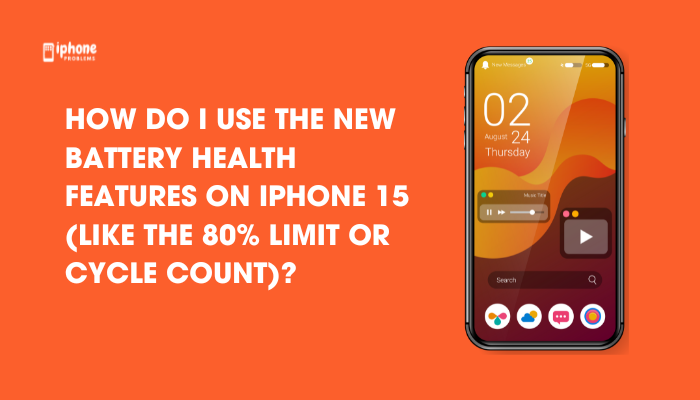
In this guide, we’ll explain what these features are, how to access them, and how to use them effectively to protect your iPhone’s battery health.
🔋 Why Apple Added New Battery Features in iPhone 15
All lithium-ion batteries degrade over time, especially when frequently charged to 100% or exposed to heat. Apple’s earlier “Optimized Battery Charging” helped reduce wear by learning your habits and delaying charging beyond 80% until needed.
With iPhone 15, Apple now gives users manual control over charging behavior and better insight into battery health, including:
- Cycle count
- Battery manufacture date
- First use date
- Maximum charging limit
These tools allow you to manage battery health proactively, especially if you plan to keep your iPhone for several years.
⚙️ Where to Find Battery Health Features on iPhone 15
Steps:
- Open the Settings app
- Tap Battery
- Select Battery Health & Charging
Here, you’ll find the following information:
- Maximum Capacity (%): Indicates how much charge your battery can hold compared to when it was new
- Cycle Count: The number of full charge cycles your battery has undergone
- Battery Manufacture Date: When the battery was originally built
- First Use Date: When the battery was first activated in a device
- Optimized Battery Charging: Apple’s smart charging feature
- 80% Limit (New): A toggle to cap charging at 80% permanently
🔋 These new features are exclusive to iPhone 15 and later.
📈 What Is Battery Cycle Count?
A battery cycle count refers to a full 0–100% discharge and recharge.
- If you use 50% of your battery one day and 50% the next, that counts as 1 full cycle
- Apple batteries are rated for about 500 full charge cycles before degrading to 80% capacity
You can now track this directly under Battery Health & Charging.
Why it matters:
- Helps you monitor how much wear your battery has accumulated
- Useful if buying or selling a used iPhone 15
- Higher cycle counts = more degradation
💡 If your battery cycle count is nearing 500 and capacity is below 80%, you may need a battery replacement in the near future.
🔒 What Is the 80% Charging Limit on iPhone 15?
The 80% limit is a new setting that intentionally caps your battery charge at 80%, regardless of how long the iPhone remains plugged in.
This is different from Optimized Battery Charging, which charges to 80% and then continues to 100% based on your daily routine.
How to turn it on:
- Go to Settings > Battery > Battery Health & Charging
- Tap Charging Optimization
- Choose 80% Limit
Once enabled, your iPhone will stop charging at 80%, even if plugged in overnight.
Why use the 80% limit?
Charging to 100% repeatedly puts more stress on lithium-ion batteries. Limiting to 80% can:
- Reduce battery temperature during charging
- Extend overall battery lifespan
- Prevent wear from high-voltage charging phases
✅ Ideal for users who charge overnight or use fast chargers regularly.
🤔 80% Limit vs. Optimized Battery Charging: What’s the Difference?
| Feature | Optimized Battery Charging | 80% Limit |
| Learns usage patterns | ✅ Yes | ❌ No |
| Charges to 100% eventually | ✅ (before your typical usage) | ❌ Always stops at 80% |
| Best for overnight charging | ✅ Yes | ✅ Yes |
| Ideal for extended battery life | ⚠️ Moderate benefit | ✅ Strong benefit |
You can enable one or the other—not both at the same time. Choose the one that best fits your usage habits.
🧪 Viewing Battery Manufacturing and Usage Details
iPhone 15 also lets you see:
- Battery Manufacture Date – Date the battery was made at the factory
- First Use Date – Date it was first used in your phone
These details are helpful for:
- Diagnosing issues with replacement batteries
- Verifying battery age on refurbished phones
- Understanding how old your current battery is
🛡 Tips to Maintain Battery Health on iPhone 15
- Enable 80% limit if you prioritize battery lifespan over 100% charge
- Use Apple-certified chargers to avoid voltage inconsistencies
- Avoid excessive heat during charging
- Keep your battery between 20%–80% when possible
- Avoid full discharges to 0% unless necessary
🔧 When to Replace the Battery
If your iPhone 15 shows:
- Battery Health below 80%
- Cycle count over 500
- Frequent shutdowns or quick battery drain
it may be time for a battery replacement. Check your AppleCare+ coverage, which includes free replacement if capacity drops below 80% during the coverage period.
✅ Summary: Master Battery Health on iPhone 15
The iPhone 15 introduces helpful battery management tools for better control and transparency. You can now:
- View your battery’s cycle count and age
- Set an 80% charging limit for long-term health
- Use Optimized Battery Charging for daily convenience
- Track Maximum Capacity to determine when to replace the battery
By using these features, you can extend the life of your iPhone’s battery, improve performance, and avoid premature replacements.
Meta Description:
Learn how to use the iPhone 15’s new battery health features, including the 80% charging limit, cycle count, and battery manufacture details. Protect your battery and extend its lifespan.