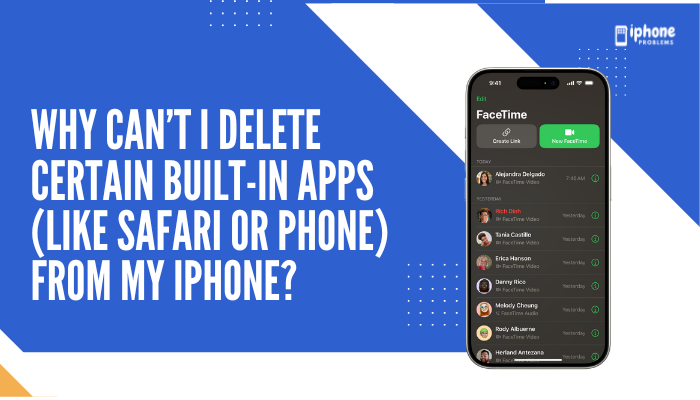
If you’ve ever tried to delete built-in apps like Safari, Phone, Messages, or Settings from your iPhone and found that there’s no delete option, you’re not alone. While Apple allows users to remove some preinstalled apps, many core apps are permanently integrated into iOS and cannot be deleted due to their essential role in system operations.
This guide explains why you can’t delete certain default iPhone apps, what you can and can’t remove, and how to hide or restrict built-in apps if you don’t want them on your Home Screen.
✅ Why Some Built-In Apps Can’t Be Deleted
Certain Apple apps are tightly integrated with iOS and provide essential functionality, including:
- Handling system processes (e.g., Settings, Phone, Messages)
- Supporting security features like FaceTime for emergency services
- Being tied to core iOS features, such as Siri, Spotlight, and Shortcuts
Deleting them could cause system instability, security vulnerabilities, or break core functions. That’s why Apple disables the deletion feature for these apps.
🛑 Non-Deletable Built-In iPhone Apps
Here are examples of built-in apps you cannot delete from your iPhone:
| Non-Deletable App | Why It Can’t Be Removed |
| Phone | Essential for cellular calls and emergency services |
| Messages | Used for SMS, iMessage, and group texting |
| Settings | Central control hub for your entire device |
| App Store | Required for downloading/updating all apps |
| Safari | Embedded in iOS (though it can be hidden) |
| Camera | Linked to Lock Screen and other native functions |
| Clock | Powers alarms, timers, and Bedtime in Health app |
| Find My | Integral for device tracking and safety features |
| Photos | Used to store and view media captured on device |
| Health | Required for Apple Watch, fitness, and emergency data |
🔒 These apps are protected system components, not just optional features.
✅ Built-In Apps You Can Delete on iPhone
Since iOS 10, Apple has allowed users to delete several default apps. These include:
- Calculator
- Calendar
- Compass
- Contacts
- FaceTime
- Files
- Home
- iTunes Store
- Maps
- Measure
- Music
- Notes
- Podcasts
- Reminders
- Shortcuts
- Stocks
- Tips
- Translate
- TV
- Voice Memos
- Watch
- Weather
How to Delete These Apps:
- Tap and hold the app icon.
- Tap Remove App.
- Tap Delete App to confirm.
📝 Deleting these apps may affect features like CarPlay, Siri, or linked apps that rely on them.
🧩 How to Hide Non-Deletable Apps from the Home Screen
If you don’t want to see an app you can’t delete, you can remove it from the Home Screen.
To Hide an App:
- Tap and hold the app icon.
- Tap Remove App.
- Select Remove from Home Screen.
The app will still be available in the App Library, accessible by swiping left past your last Home Screen page.
🔐 How to Restrict Access to Certain Built-In Apps
Use Screen Time to hide apps like Safari or Messages without deleting them.
To Restrict an App:
- Go to Settings > Screen Time.
- Tap Content & Privacy Restrictions.
- Tap Allowed Apps.
- Toggle OFF apps like Safari, Camera, or Wallet.
These apps will disappear from the Home Screen and can’t be opened until re-enabled.
🛠 Reinstall a Deleted Built-In App
Deleted a default app by mistake? You can reinstall it from the App Store.
To Restore a Built-In App:
- Open the App Store.
- Search for the app by name (e.g., “Mail” or “Maps”).
- Tap the download icon (cloud with arrow).
- The app will reappear on your Home Screen.
🧠 Why Apple Restricts Deletion of Certain Apps
| Reason | Explanation |
| System integrity | Prevents users from deleting apps that are essential for the OS to function properly |
| Security | Ensures apps used for identity verification or safety (Phone, Messages, Find My) are always present |
| Emergency features | Many apps are tied to critical health or emergency services (like Medical ID in Health app) |
| Dependency | Some system apps rely on others to run background tasks (e.g., Phone app linked to Contacts and FaceTime) |
📋 Summary Table
| Action | Supported? | Notes |
| Delete Phone or Messages app | ❌ No | These are system-critical apps |
| Delete Safari app | ❌ (can only hide) | Use Screen Time to restrict |
| Delete Mail, Notes, Music | ✅ Yes | Available for redownload via App Store |
| Hide non-deletable apps | ✅ Yes | Use “Remove from Home Screen” |
| Restrict apps from being used | ✅ Yes | Use Screen Time > Allowed Apps |
✅ Final Thoughts
You can’t delete certain built-in iPhone apps like Phone, Messages, Safari, or Settings because they are tightly woven into the core functionality of iOS. They’re essential for features like calling, texting, system configuration, and emergency access.
However, Apple gives you plenty of control to manage app visibility and functionality. You can hide apps from the Home Screen, restrict them via Screen Time, and remove less essential built-in apps like Mail, Notes, and Calculator. If you change your mind, these apps can be restored anytime from the App Store.Meta Description:
Wondering why you can’t delete built-in apps like Safari or Phone on your iPhone? Learn which apps are removable, how to hide or restrict system apps, and what to do instead.