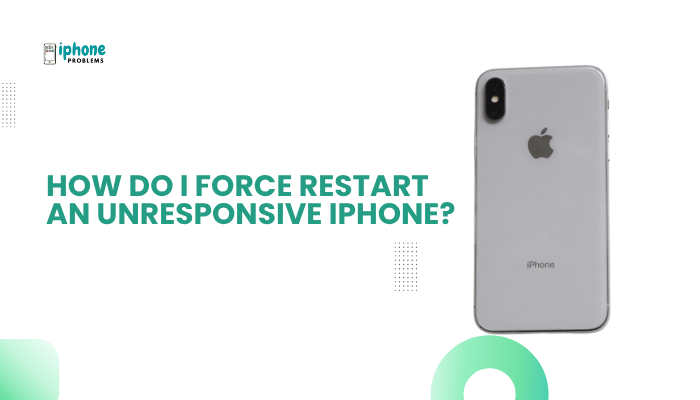
If your iPhone 11 is frozen, unresponsive, stuck on a black screen, or not reacting to taps and swipes, performing a force restart (also known as a hard reboot) is one of the quickest and safest solutions. This simple button combination bypasses software glitches, allowing the phone to shut down and reboot—without needing the screen or touchscreen to respond.
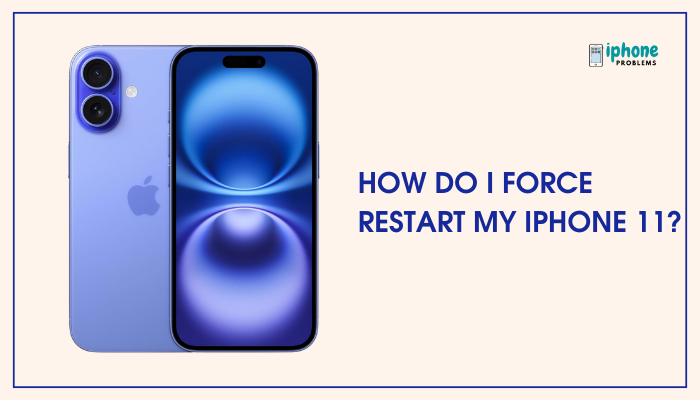
In this guide, you’ll learn how to force restart your iPhone 11, what situations require it, what it does (and doesn’t do), and troubleshooting steps if the force restart doesn’t work.
🔄 What Is a Force Restart?
A force restart is a manual way to reboot the iPhone using hardware buttons. It’s useful when:
- The iPhone is completely unresponsive
- The screen is frozen, black, or stuck on an app
- Normal restart options (via touchscreen) aren’t working
✅ A force restart does not delete data, reset settings, or erase apps—it’s safe to perform anytime the phone is frozen or acting erratically.
📲 How to Force Restart iPhone 11
The iPhone 11, like other Face ID iPhones, uses a three-step button combination:
✅ Step-by-Step Instructions:
- Quickly press and release the Volume Up button
- Quickly press and release the Volume Down button
- Press and hold the Side button (on the right side of the phone)
- Keep holding the Side button even after the screen goes black.
- Release the button when you see the Apple logo appear on the screen.
🧠 Tips:
- The volume buttons must be pressed quickly and in order before pressing the side button.
- Don’t pause between steps.
- If done correctly, your iPhone 11 will restart even if the screen was completely frozen or off.
🔋 When Should You Force Restart an iPhone 11?
You should perform a force restart if your iPhone 11:
- Is stuck on the Apple logo during startup
- Has a frozen screen or is unresponsive to touch
- Shows a black screen but is powered on (you hear sounds or feel vibrations)
- Keeps crashing or is stuck in a boot loop
- Doesn’t respond to a regular restart via the power slider
⚠️ What a Force Restart Doesn’t Do
Let’s clear up a few misconceptions. A force restart does not:
- Delete apps, photos, messages, or any personal data
- Erase your iPhone
- Remove passcodes or reset iCloud settings
- Fix deep system issues (like malware or corrupted iOS) permanently
🔁 It’s a temporary fix designed to break a crash or loop, not a solution for major software failures.
🧪 What If Force Restart Doesn’t Work?
If your iPhone 11 doesn’t respond after trying a force restart, try these additional steps:
Charge the Phone
- Plug the iPhone into a wall charger using an Apple-certified Lightning cable
- Wait at least 30–60 minutes
- Then repeat the force restart steps again
⚡ If the battery is completely drained, your iPhone may not respond immediately.
Check the Buttons
- Make sure the Volume Up, Volume Down, and Side buttons are not stuck or damaged
- Try force restarting using a different finger or firmer press
Connect to a Computer
- Plug your iPhone 11 into a Mac (use Finder) or PC (use iTunes)
- If the device is detected, you may be prompted to update or restore it
- Choose “Update” first to preserve your data
Enter Recovery Mode (Advanced Option)
If nothing else works, you can enter Recovery Mode and reinstall iOS:
Steps:
- Connect the iPhone 11 to your computer
- Perform the same force restart steps—but continue holding the Side button after the Apple logo
- Release the button when the Recovery Mode screen appears
- Use your computer to Update or Restore your iPhone
⚠️ Choosing “Restore” will erase all data, so make sure you have a backup if possible.
🆘 When to Contact Apple Support
Seek professional help if:
- Your iPhone 11 remains unresponsive after all steps
- It shows only a black screen for hours
- It gets stuck in a restart loop (Apple logo keeps flashing)
- There’s physical or water damage
You can visit an https://www.apple.com/in/retail/or contacthttps://support.apple.com/ online.
🧼 Tips to Avoid Freezing Issues on iPhone 11
- Keep iOS updated to the latest stable version
- Avoid running too many apps at once
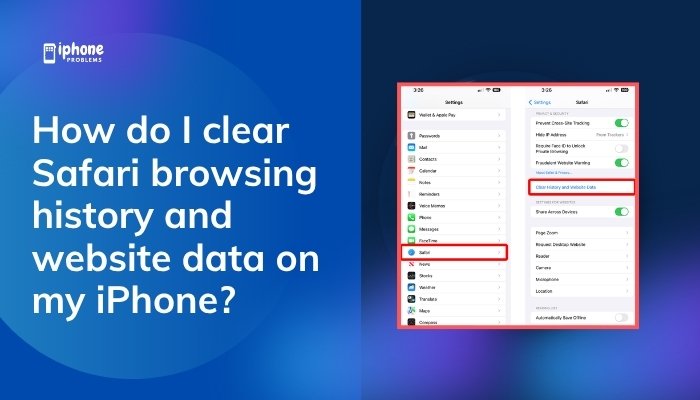
- Regularly clear Safari cache: Settings > Safari > Clear History and Website Data
- Free up storage if it’s nearing full: Settings > General > iPhone Storage
- Monitor battery health: Settings > Battery > Battery Health & Charging
✅ Summary: Force Restarting Your iPhone 11
If your iPhone 11 is frozen or unresponsive, a force restart is the first and most effective step. It can resolve most screen freezes, app crashes, and unresponsive behavior without risking your data.
🔁 Quick Force Restart Recap:
| Step | Action |
| 1. Volume Up | Press and release quickly |
| 2. Volume Down | Press and release quickly |
| 3. Side Button | Press and hold until Apple logo appears |