Forgetting your iPhone passcode can be frustrating, especially if you’ve entered the wrong code multiple times and now see the message: “iPhone is disabled” or “iPhone Unavailable” on your screen. At this point, the only way to regain access is to reset the iPhone, which erases everything—including the passcode—and allows you to start fresh or restore from a backup.
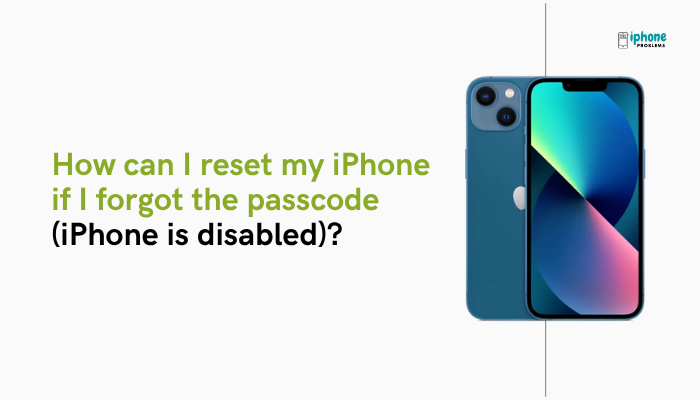
In this guide, you’ll learn how to reset a disabled iPhone or one with a forgotten passcode, including step-by-step instructions for using iCloud, Recovery Mode, and Apple’s iPhone reset tool. We’ll also cover how to restore your data afterward.
🔐 What Happens When You Forget Your iPhone Passcode?
After multiple incorrect passcode attempts, your iPhone temporarily disables itself. Eventually, you may see:
- “iPhone Unavailable”
- “Security Lockout”
- “iPhone is disabled. Connect to iTunes.”
At this point, there’s no way to bypass the passcode without completely erasing the device.
⚠️ This is a security feature designed to protect your data. Apple cannot help you recover the passcode—but they do offer tools to erase the device.
🧼 What You’ll Need to Reset Your iPhone
- A computer (Mac or Windows PC)
- A compatible USB or Lightning cable
- Your Apple ID and password (to bypass Activation Lock)
- Optional: an existing backup if you want to restore your data after the reset
✅ Method 1: Use Apple’s Official Website (iOS 15.2 or Later)
If your iPhone is running iOS 15.2 or later and you’re connected to Wi-Fi or cellular data, you may be able to erase your iPhone directly from the lock screen.
📲 Steps:
- After several failed passcode attempts, you’ll see “iPhone Unavailable” with an “Erase iPhone” option in the bottom corner.
- Tap “Erase iPhone”.
- Confirm you want to erase all data and settings.
- Enter your Apple ID password to sign out of iCloud and disable Activation Lock.
- Wait for the process to complete.
📌 Your iPhone will be erased and restarted. You can then set it up as new or restore from a backup.
✅ Method 2: Use Recovery Mode and Finder/iTunes
This is the most reliable method and works for all iPhone models, especially if the “Erase iPhone” option isn’t available.
💻 Requirements:
- Mac with Finder (macOS Catalina or later)
- PC or older Mac with iTunes
- USB-C or Lightning cable
🔄 Step-by-Step Instructions:
- Connect your iPhone to your computer using a USB cable.
- Put your iPhone into Recovery Mode (the method varies by model):
iPhone 8 and later (including iPhone X to 15):
- Quickly press and release the Volume Up button.
- Quickly press and release the Volume Down button.
- Press and hold the Side button until you see the Recovery Mode screen (not the Apple logo).
iPhone 7 / 7 Plus:
- Hold the Volume Down + Side button together until the Recovery Mode screen appears.
iPhone 6s or SE (1st Gen):
- Hold the Home + Top/Side button until the Recovery Mode screen appears.
- On your computer, you’ll see a message:
“There is a problem with the iPhone that requires it to be updated or restored.” - Choose Restore (not Update). This erases your iPhone and installs the latest iOS.
- Wait for the process to complete. Your iPhone will restart and show the “Hello” screen.
✅ Method 3: Use iCloud to Erase Your iPhone Remotely
If Find My iPhone is enabled and your iPhone is connected to Wi-Fi or cellular data, you can erase it using iCloud.com.
🌐 Steps:
- Go to https://www.icloud.comon a computer or another device.
- Sign in with your Apple ID and password.
- Click “Find iPhone”.
- Select your iPhone from the All Devices dropdown menu.
- Click “Erase iPhone”.
- Enter your Apple ID password to confirm.
🎯 This method works even if you don’t have your iPhone physically with you.
🔁 After Resetting: Setting Up Your iPhone
Once the reset is complete, your iPhone will restart and display the “Hello” setup screen.
You can then:
- Set it up as a new iPhone
- Restore from an iCloud backup
- Restore from a Mac/PC backup
🔐 You’ll need to enter your Apple ID and password to turn off Activation Lock and complete setup.
🧪 Troubleshooting Tips
- iPhone not recognized by computer? Try a different cable or port.
- Stuck during restore? Force quit iTunes/Finder and try again.
- Can’t remember your Apple ID or password? Visithttps://iforgot.apple.com.
🔄 Restoring can take 15–60 minutes depending on your internet speed and device performance.
🧼 How to Prevent Future Lockouts
- Use Face ID or Touch ID to reduce passcode entry
- Enable iCloud Backup to avoid data loss
- Write down or securely store your passcode
- Use a 6-digit or alphanumeric code that’s easy for you to remember but hard for others to guess
✅ Summary: Resetting a Disabled or Locked iPhone
If you forget your iPhone passcode or your iPhone becomes disabled, your only solution is to erase and reset the device. You can do this using the lock screen (iOS 15.2+), Recovery Mode, or iCloud. After that, you’ll need your Apple ID to complete the setup and optionally restore from a backup.
Quick Reset Methods:
| Method | Tools Needed | Best For |
| Erase from screen | iPhone (iOS 15.2+) | Most convenient if “Erase iPhone” is shown |
| Recovery Mode | Finder or iTunes | All devices; standard and reliable |
| iCloud | Web browser + Apple ID | Erase remotely from another device |