If you’re planning to sell, give away, or troubleshoot your iPhone, performing a factory reset is the most thorough way to remove all your personal information and restore the device to its original state. This process erases all apps, photos, settings, messages, and iCloud data stored on the device.
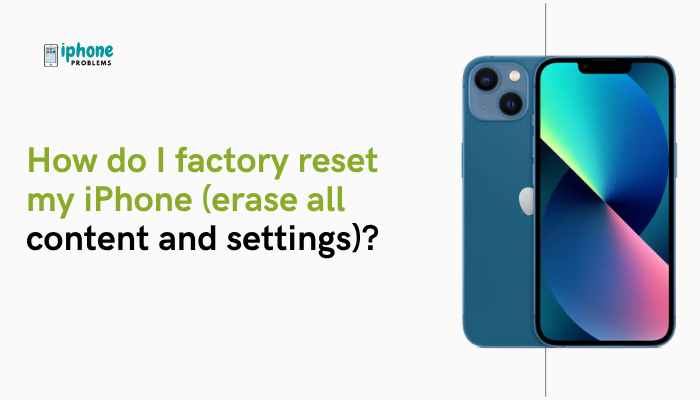
In this guide, you’ll learn how to factory reset your iPhone step-by-step, what precautions to take before doing it, and how to handle situations when you can’t access the device normally.
🧠 What Is a Factory Reset?
A factory reset (also called “Erase All Content and Settings”) completely wipes your iPhone, removing:
- Photos, videos, and music
- Apps and app data
- Messages and contacts
- System settings and preferences
- Apple ID and iCloud login (only if you manually sign out)
⚠️ While the reset removes content, your iPhone will still be activation-locked to your Apple ID unless you sign out of iCloud first.
🛡️ Before You Factory Reset Your iPhone
✅ Back Up Your Data
Factory resetting your iPhone permanently deletes everything, so create a backup first.
iCloud Backup:
- Go to Settings > [your name] > iCloud > iCloud Backup
- Tap Back Up Now
iTunes or Finder Backup:
- Connect your iPhone to a Mac or PC
- Open Finder (macOS Catalina or later) or iTunes (Windows/macOS Mojave or earlier)
- Select your device and click Back Up Now
✅Sign Out of iCloud (Disable Activation Lock)
If you’re giving away or selling the iPhone, sign out of iCloud to remove Activation Lock.
- Go to Settings > [your name] > Sign Out
- Enter your Apple ID password to confirm
🔄 How to Factory Reset Your iPhone (Erase All Content and Settings)
For iPhone running iOS 15 or later:
- Open the Settings app
- Tap General
- Scroll down and tap Transfer or Reset iPhone
- Tap Erase All Content and Settings
- Enter your passcode (if prompted)
- Tap Erase iPhone
- Confirm Apple ID password to disable Find My iPhone and iCloud
- Wait for the process to complete (usually takes a few minutes)
Your iPhone will reboot and display the “Hello” setup screen, just like a brand-new device.
🔄 Alternate Method: Factory Reset Using Computer
Use this method if your iPhone is unresponsive or locked out.
Requirements:
- A computer with the latest version of iTunes (Windows/macOS Mojave) or Finder (macOS Catalina and later)
- USB/Lightning cable
Steps:
- Connect your iPhone to the computer
- Put the iPhone into Recovery Mode:
- iPhone 8 or later:
- Press and release Volume Up,
- Press and release Volume Down,
- Press and hold the Side button until the Recovery Mode screen appears
- iPhone 7 / 7 Plus:
- Hold Volume Down + Side button until the Recovery Mode screen appears
- iPhone 6s / SE 1st Gen:
- Hold Home + Top/Side button together until Recovery Mode appears
- iPhone 8 or later:
- On your computer, a message will appear:
“There is a problem with the iPhone that requires it to be updated or restored.” - Click Restore
- iTunes or Finder will download and reinstall iOS and erase everything
🧪 What to Do if You Forgot the Passcode
If you can’t unlock the phone to reset it:
- Use Recovery Mode as described above
- Choose Restore to wipe the iPhone completely
- You will still need your Apple ID and password to set it up again (Activation Lock)
🔐 Apple does not support bypassing Activation Lock. Always ensure you have access to the linked Apple ID.
🆘 When to Contact Apple Support
Reach out to https://support.apple.comif:
- You can’t sign out of iCloud due to a forgotten Apple ID
- The iPhone won’t enter Recovery Mode
- You experience errors during restore (like error 4013 or 9)
- The reset doesn’t complete successfully
🧼 Tips After a Factory Reset
- If you’re selling or gifting the iPhone, keep it on the “Hello” screen
- If keeping the device, go through setup and restore from your backup
- Always verify iCloud is signed out before handing the device to someone else
✅ Summary: How to Factory Reset Your iPhone
A factory reset wipes all data and settings from your iPhone and restores it to a like-new state. Always back up your data and sign out of iCloud first. You can reset directly from your iPhone or use a computer if it’s unresponsive.
Quick Reset Guide:
| Method | Steps Summary |
| On iPhone (Settings) | Settings > General > Transfer or Reset > Erase All |
| Using Computer (Recovery Mode) | Enter Recovery Mode, then choose Restore |
| Forgot Passcode? | Use Recovery Mode + Apple ID to unlock and erase |