After installing a new iOS update, many iPhone users report faster battery drain. While this is often temporary, persistent battery issues can be frustrating. Fortunately, most post-update battery drain problems can be fixed by adjusting a few settings, updating apps, and allowing background processes to settle.
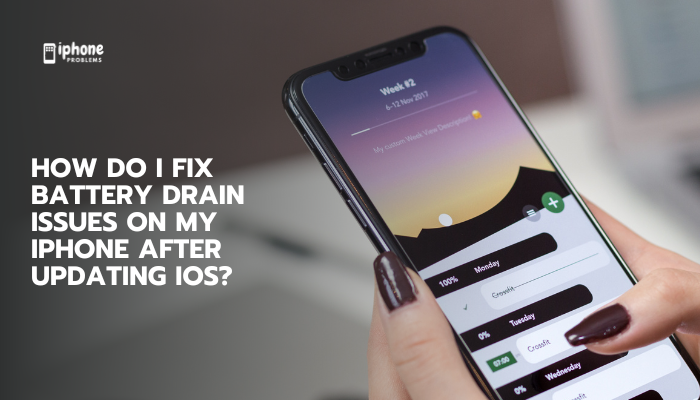
In this guide, you’ll learn why your iPhone battery may be draining after an iOS update, and get practical steps to troubleshoot and fix the issue.
🔋 Why Battery Drains After an iOS Update
Battery drain immediately after an iOS update is often caused by:
- Background reindexing (Photos, Spotlight, and iCloud syncing)
- New features or settings enabled by default
- App incompatibility with the new iOS version
- Battery health decline that’s more noticeable after an update
- Temporary system bugs that affect power management
These issues are generally not hardware-related and can be resolved through software fixes or usage adjustments.
✅ Step-by-Step Fixes for Post-iOS Update Battery Drain
Wait 24–48 Hours
After a major iOS update, your iPhone performs background tasks such as:
- Photo library reindexing
- Spotlight search optimization
- iCloud syncing
These processes can be resource-heavy and temporarily affect battery life.
🔄 What to do: Let your phone run for 1–2 days post-update before taking further action.
Restart Your iPhone
A simple reboot can stop unnecessary background activity or stuck processes.
- How to restart:
- On Face ID models: Press and hold the side + volume up/down buttons, then slide to power off.
- On Touch ID models: Press and hold the side button, then slide to power off.
🔁 Restart once or twice within the first 24 hours after updating.
Update Your Apps
Apps not optimized for the latest iOS version can cause background activity spikes and drain power.
- Go to the App Store > Tap your profile > Swipe down to refresh updates
- Update all apps to the latest versions
🔍 You can also check Settings > Battery to see which apps are using the most power.
Turn On Low Power Mode
Low Power Mode limits background tasks and reduces screen brightness, animations, and sync functions.
- Go to Settings > Battery > Low Power Mode
- Or enable it from Control Center
Use this mode consistently if your battery is draining too quickly, especially below 50%.
Review Battery Usage by App
To see which apps are draining your battery:
- Open Settings > Battery
- Scroll down to “Battery Usage by App”
- Check for apps using excessive power (especially in the background)
🛠️ If an app is using too much power, update it, force close it, or delete and reinstall.
Disable Background App Refresh
Apps refreshing in the background can quickly drain power, especially after an iOS update.
- Go to Settings > General > Background App Refresh
- Set to Off or choose Wi-Fi only
- Disable individually for apps you rarely use
Adjust Location Services
Some apps constantly access your location in the background, which drains battery.
- Go to Settings > Privacy & Security > Location Services
- Set rarely used apps to “While Using the App” or “Never”
Turn Off Push Email
Mail apps fetching messages in real-time can reduce battery life.
- Go to Settings > Mail > Accounts > Fetch New Data
- Turn off Push
- Set fetch schedule to Manual or Every 30 minutes
Disable New iOS Features If Unnecessary
New iOS versions often enable new features that may drain power, like:
- Live Activities
- Always-On Display (iPhone 14 Pro and newer)
- Haptic keyboard feedback
🔧 Go to Settings > Display or Settings > Accessibility to turn off unnecessary visual or haptic features.
Reset All Settings (No Data Loss)
If issues persist, reset system settings:
- Go to Settings > General > Transfer or Reset iPhone > Reset > Reset All Settings
This resets Wi-Fi, Bluetooth, notifications, etc., without deleting your data.
Check Battery Health
If your battery health is already low, new iOS updates may make the problem more noticeable.
- Go to Settings > Battery > Battery Health & Charging
- If Maximum Capacity is below 80%, consider replacing the battery
🔋 iPhones with degraded batteries may also show performance throttling or shutdown warnings.
Install iOS Bug Fix Updates
If your update introduced a bug that causes battery drain, Apple typically releases fixes in follow-up patches (e.g., iOS 17.0.2, 17.1.1).
- Go to Settings > General > Software Update
- Install the latest available iOS version
🧠 Bonus Tips to Extend Battery Life
- Use Dark Mode (Settings > Display > Appearance)
- Enable Auto-Brightness (Settings > Accessibility > Display & Text Size)
- Keep iOS and apps updated regularly
- Avoid overcharging or frequent 0%–100% cycles
- Use Apple-certified chargers
✅ Summary: Fixing iPhone Battery Drain After an iOS Update
Battery drain after updating iOS is a common but usually temporary issue. By waiting 1–2 days, adjusting power-hungry settings, and updating apps, most users can resolve the problem without needing service or repairs.
Quick Fix Checklist:
| Step | Action |
| System reindexing | Wait 24–48 hours |
| Restart iPhone | Reboot to clear temporary glitches |
| Update all apps | Fix compatibility issues |
| Enable Low Power Mode | Conserve power immediately |
| Disable Background App Refresh | Limit background activity |
| Check Battery Usage | Spot power-hungry apps |
| Adjust Location & Mail settings | Reduce constant background syncing |
| Install latest iOS patch | Get bug fixes and battery improvements |
| Reset settings (optional) | Fix lingering system errors |
Meta Description:
Is your iPhone battery draining quickly after an iOS update? Learn 12 effective ways to fix battery issues, from adjusting settings to using Low Power Mode and updating apps.