Complete Guide – Minimum 800 Words
Forgetting your Screen Time passcode on your iPhone can be frustrating, especially if you’re locked out of content, apps, or parental controls. Fortunately, Apple offers multiple secure methods to help you reset or recover your Screen Time passcode, whether it’s for your own device or your child’s.
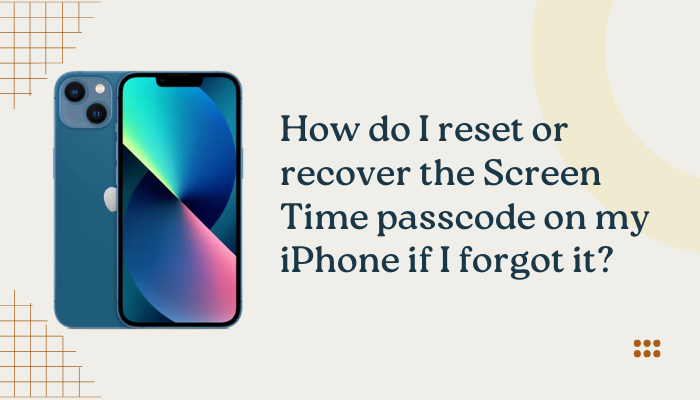
In this guide, you’ll learn everything you need to know about recovering, resetting, or removing your Screen Time passcode, including what to do if recovery options fail, how to use Apple ID for reset, and alternative methods for parents using Family Sharing.
✅ What Is the Screen Time Passcode?
The Screen Time passcode is a 4-digit code you set up to protect Screen Time settings, prevent unauthorized access, and enforce limits or restrictions.
You may have used it to:
- Limit daily usage of apps
- Enforce Downtime schedules
- Prevent your child from changing restrictions
- Restrict purchases, website access, or settings changes
If you forgot this passcode, you’ll need to verify your identity to reset or remove it.
🔐 How to Reset Your Screen Time Passcode Using Apple ID (iOS 13.4 and Later)
If your iPhone is running iOS 13.4 or later, Apple allows you to use your Apple ID to reset your Screen Time passcode.
✅ Step-by-Step Instructions:
- Go to Settings > Screen Time.
- Tap Change Screen Time Passcode.
- Tap Forgot Passcode? when prompted.
- Enter your Apple ID and password used when Screen Time was set up.
- Follow the on-screen instructions to reset your passcode.
You can now set a new 4-digit Screen Time passcode.
🔒 This method works only if you previously set up Apple ID recovery for Screen Time. If you skipped it, you’ll need to try other options below.
👨👩👧👦 Resetting Child’s Screen Time Passcode (Family Sharing)
If you use Family Sharing, and you’re the Family Organizer, you can reset your child’s Screen Time passcode from your device.
Steps:
- Open Settings > Screen Time on your iPhone.
- Tap your child’s name under the Family section.
- Tap Change Screen Time Passcode.
- Choose Change Passcode or Turn Off Screen Time Passcode.
- Authenticate using Face ID, Touch ID, or your device passcode.
This resets the passcode or removes it entirely.
📲 Forgot Your Apple ID or Can’t Use It?
If the Apple ID recovery option doesn’t work, you have a few alternatives:
Option 1: Try to Recall with Password Manager
- Check saved passwords in Settings > Passwords
- Check any notes or password apps you may have used
Option 2: Restore Using iTunes/Finder (With Caution)
If you don’t remember your Screen Time passcode and Apple ID recovery isn’t available, you may need to erase and restore the device as new. This will remove all data unless backed up.
⚠️ This method works only if you don’t restore from backup, as Screen Time settings are stored in backups.
How to Reset iPhone (Advanced):
- Back up important data (photos, contacts, etc.) manually—not using iCloud/iTunes.
- Connect iPhone to Mac (Finder) or PC (iTunes).
- Put your iPhone in Recovery Mode:
- For Face ID models: Press Volume Up → Volume Down → Hold Side Button.
- For Home Button models: Hold Home + Power until Recovery screen appears.
- For Face ID models: Press Volume Up → Volume Down → Hold Side Button.
- Choose Restore.
- Set up as a new iPhone without restoring from backup.
❌ Avoid restoring the previous backup if you want to remove the Screen Time passcode.
🛠 Third-Party Tool (Last Resort Option)
Several trusted third-party software tools can remove Screen Time passcodes without data loss. Use these only as a last resort:
- Tenorshare 4uKey
- iMyFone LockWiper
- Dr.Fone – Screen Unlock
⚠️ Always read user reviews and ensure the app supports your iOS version. Use only official websites and proceed with caution.
💡 How to Avoid Forgetting Screen Time Passcodes in the Future
- Enable Apple ID recovery when setting up Screen Time.
- Use a passcode you don’t use elsewhere, but one you’ll remember.
- Write down or save the passcode in a password manager app like iCloud Keychain, 1Password, or LastPass.
- Periodically review and update passcodes if children guess them.
🔧 Troubleshooting Table
| Issue | Solution |
| Forgot passcode, but have Apple ID | Reset via Settings > Screen Time > Forgot Passcode? |
| Forgot passcode, no Apple ID setup | Restore iPhone as new (no backup restore) |
| Child’s passcode forgotten | Reset via Family Sharing under Screen Time > [Child’s Name] |
| Passcode reset option not showing | Update iPhone to latest iOS version |
📋 Summary Table
| Method | Requirements | Notes |
| Apple ID Reset | iOS 13.4+, recovery enabled | Easiest and safest method |
| Family Sharing Reset | Parent as Family Organizer | Reset child’s passcode remotely |
| Erase & Set Up as New | No backup restore | Removes passcode, but deletes data |
| Third-Party Tool | PC/Mac needed | Use only from trusted developers |
✅ Final Thoughts
Forgetting your Screen Time passcode doesn’t mean you’re permanently locked out. If you’ve set up Apple ID recovery, resetting it is quick and easy. For child accounts, Family Sharing provides remote control. Even without a backup or Apple ID access, there are advanced ways to reset your device and regain control.
To prevent future headaches, always enable Apple ID recovery when setting up Screen Time and store your passcode securely.
Meta Description:
Forgot your iPhone’s Screen Time passcode? Learn how to reset or recover it using Apple ID, Family Sharing, or device restore. Complete 800-word guide with troubleshooting steps.
Would you like a follow-up guide on using Screen Time with children, setting content limits, or choosing trusted third-party unlock tools? ⏱🔐📱
Search