When you connect your iPhone to a computer for the first time using a USB cable, you’ll see a prompt that says “Trust This Computer?”. This security feature is essential for protecting your personal data. Trusting a computer allows that device to access your iPhone’s data, manage content using Finder or iTunes, back up the device, and transfer photos, music, and files.
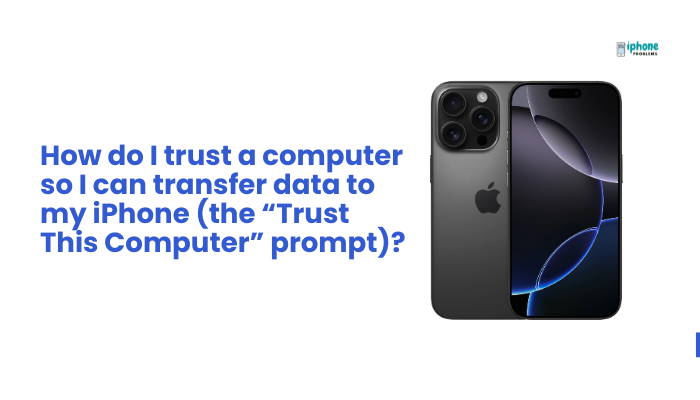
In this article, we’ll explain what the “Trust This Computer” prompt means, how to properly trust a computer, what to do if the prompt doesn’t appear, and how to reset your trust settings if needed.
🔐 What Does “Trust This Computer” Mean?
The “Trust This Computer” prompt appears to prevent unauthorized access to your iPhone’s data. When you select “Trust”, your iPhone gives that computer permission to:
- Access your files and settings
- Sync media through iTunes or Finder
- Install iOS updates and backups
- Use third-party apps like iMazing, AnyTrans, etc.
If you choose “Don’t Trust”, the computer can still charge your iPhone but cannot access your data.
✅ You should only trust computers you recognize and control, such as your personal laptop or desktop.
📲 When Does the “Trust” Prompt Appear?
You’ll see the “Trust This Computer” message:
- The first time you connect your iPhone to a new computer
- If you reset all settings or erase content on your iPhone
- If you update or reinstall iOS and haven’t reestablished trust
- When connecting through USB accessories that require data access
The prompt appears on your iPhone screen—not on the computer.
✅ How to Trust a Computer Step-by-Step
Connect your iPhone to your computer
- Use a certified Lightning or USB-C cable.
- Unlock your iPhone (enter your passcode or use Face ID/Touch ID).
Wait for the “Trust This Computer?” prompt
- On your iPhone screen, you’ll see:
“Trust This Computer? Your settings and data will be accessible from this computer when connected.”
Tap “Trust”
- Tap Trust when prompted.
- Enter your iPhone passcode to confirm.
That’s it—your iPhone now allows the computer to access its content and settings.
❌ What If the “Trust” Prompt Doesn’t Appear?
If the trust prompt is missing or not working:
Check your cable and ports
- Use a certified Lightning or USB-C cable
- Try another USB port or cable
- Avoid low-power or data-blocked charging hubs
Update software
- Update iTunes or Finder to the latest version
- Ensure your iPhone is running the latest iOS
- On Windows, make sure Apple Mobile Device USB Driver is installed
Unlock your iPhone
- If your phone is locked or disabled, the prompt may not appear
- Enter your passcode manually if Face ID or Touch ID doesn’t trigger
Restart both devices
- Restart your iPhone and your computer, then reconnect
🔄 How to Reset Trusted Computers
You can remove all previously trusted computers if you want to revoke access:
📱 On iPhone:
- Go to Settings > General > Transfer or Reset iPhone
- Tap Reset > Reset Location & Privacy
- Enter your passcode and confirm
🔁 This will reset all trusted computers and location/privacy settings. The next time you connect your iPhone to a computer, you’ll see the “Trust” prompt again.
🧪 Can I Trust Multiple Computers?
Yes. You can trust as many computers as you like. Your iPhone remembers each trusted machine unless you:
- Reset your location & privacy settings
- Erase all content and settings
- Restore your iPhone via Recovery or DFU Mode
Each trusted computer is stored individually on your device.
🔒 Why Trusting a Computer Matters
Trusting a computer gives it access to:
- Personal data (contacts, messages, photos, etc.)
- Backups and app files
- System diagnostics and crash logs
- Developer tools (if you’re using Xcode or debugging apps)
⚠️ Never tap “Trust” on public or shared computers. This can expose your data to misuse or unauthorized backups.
🧼 Tips for Safe Trust Management
- Only trust your own devices (home or work computer)
- Use strong passcodes to protect your iPhone
- Reset trust settings if you lose a computer
- Always disconnect from unfamiliar machines immediately if you accidentally tap “Trust”
✅ Summary: How to Trust a Computer on iPhone
Trusting a computer is essential when you want to transfer data, perform backups, or sync media between your iPhone and your computer. The “Trust This Computer” prompt helps protect your privacy by ensuring only approved devices have access.
Trusting a Computer—Quick Steps:
| Step | Action |
| Step 1 | Connect iPhone to computer via USB |
| Step 2 | Unlock your iPhone |
| Step 3 | Tap “Trust” on the iPhone prompt |
| Step 4 | Enter passcode to confirm |