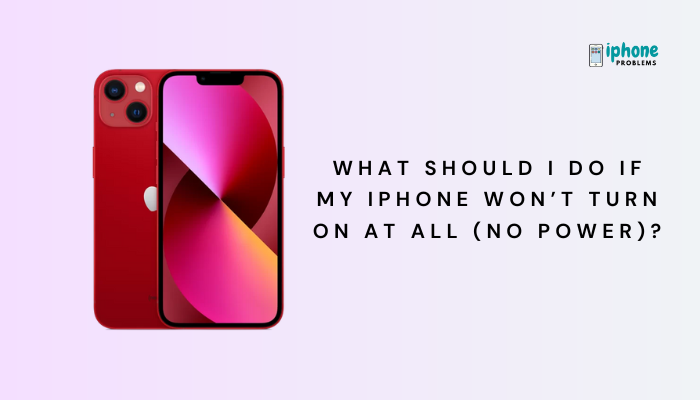
If your iPhone won’t turn on at all—no Apple logo, no screen response, no sound, not even when charging—don’t panic. It might look dead, but in many cases, the problem is fixable without visiting a repair shop. The issue could be as simple as a drained battery, a faulty charging cable, or a minor system crash.
This guide will walk you through step-by-step troubleshooting to revive your iPhone and explain what to do if it still shows no signs of power.
🔋 Step 1: Charge Your iPhone
The most common reason an iPhone won’t turn on is a fully depleted battery.
✅ What to do:
- Connect your iPhone to a certified charger and power source (wall outlet preferred).
- Use an Apple-certified Lightning or USB-C cable.
- Let it charge for at least 30 to 60 minutes, even if nothing appears on the screen.
⚠️ You might not see the charging symbol immediately, especially if the battery was completely drained. Be patient.
🔧 Try This If Charging Doesn’t Help:
- Use a different cable, charger, or wall adapter.
- Plug into a different power outlet.
- Inspect the charging port for dust, lint, or corrosion. Gently clean with a toothpick or soft brush.
🔄 Step 2: Force Restart the iPhone
If your iPhone still doesn’t turn on after charging, it might be frozen on a black screen or the system may have crashed.
🔁 How to Force Restart (Depends on Model):
iPhone 8 and later (including iPhone X, 11, 12, 13, 14, 15):
- Quickly press and release the Volume Up button.
- Quickly press and release the Volume Down button.
- Press and hold the Side button until the Apple logo appears.
iPhone 7 and 7 Plus:
- Press and hold the Volume Down and Side button simultaneously until you see the Apple logo.
iPhone 6s, SE (1st gen), and older:
- Press and hold both the Home button and the Top (or Side) button together until the Apple logo appears.
🧠 This method doesn’t delete data—it simply reboots the system.
🧪 Step 3: Check for Screen Issues
Your iPhone might be powered on, but the screen isn’t displaying anything due to a hardware issue.
Signs:
- You hear a notification sound or feel vibrations but the screen stays black.
- The phone rings when you call it from another device.
What to do:
- Shine a flashlight at the screen—look for a faint image (an indication of a damaged backlight).
- Try volume buttons or the mute switch to see if you hear system sounds.
- Connect your iPhone to a computer and check if it’s recognized (see next step).
⚠️ If your screen is cracked, shows discoloration, or flickers, it may need professional repair.
💻 Step 4: Connect to a Computer
This helps determine if the iPhone is powered on but stuck, or if it’s truly unresponsive.
Instructions:
- Connect your iPhone to a Mac or Windows PC using a compatible cable.
- Open Finder (Mac) or iTunes (Windows or older Macs).
- If your iPhone is detected, you’ll see an option to Update or Restore.
If It’s Not Detected:
You can attempt to put the iPhone into Recovery Mode:
For iPhone 8 and later:
- Perform the force restart steps, but continue holding the Side button even after the Apple logo.
- Release when the Recovery Mode screen appears (shows a cable and computer icon).
- Choose Update (to reinstall iOS without erasing data) or Restore (erases everything).
🛑 Only select “Restore” if you’ve exhausted all other options and have a backup.
⚠️ Step 5: Look for Signs of Physical or Water Damage
Check for:
- Cracks, dents, or bent casing
- Water exposure indicators (small red dots in the SIM tray area)
- Signs of moisture under the screen
If your iPhone was dropped, submerged, or exposed to extreme conditions, it may have suffered internal damage that requires hardware service.
🆘 When to Contact Apple Support
You should contact https://support.apple.com/or visit an Apple Store or Authorized Service Provider if:
- Your iPhone doesn’t respond after force restart and charging
- The screen stays black even though sounds/vibrations work
- Your iPhone isn’t recognized by a computer
- You suspect hardware damage
- The device shows a red or orange battery icon and won’t charge
📦 If your iPhone is under AppleCare+, battery or hardware issues may be covered at no cost.
🧼 Tips to Avoid Power Issues in the Future
- Use Apple-certified chargers and cables only
- Avoid letting your battery reach 0% regularly
- Keep iOS updated to the latest version
- Periodically clean your iPhone’s charging port
- Protect your device from water, dust, and falls
✅ Summary: Fixing an iPhone That Won’t Turn On
If your iPhone seems completely dead, start with charging it, then try a force restart. If there’s still no response, rule out charging issues, screen problems, or system crashes using the steps outlined above. In some cases, professional repair may be needed.
Troubleshooting Recap:
| Step | What to Do |
| Step 1: Charge | Use a known-good charger for 30–60 minutes |
| Step 2: Force Restart | Use the button combo for your iPhone model |
| Step 3: Screen Check | Look for signs of power without screen activity |
| Step 4: Computer Connection | Try iTunes/Finder or enter Recovery Mode |
| Step 5: Inspect for Damage | Look for water or drop-related signs |
| Step 6: Apple Support | Visit store or schedule service if nothing else works |