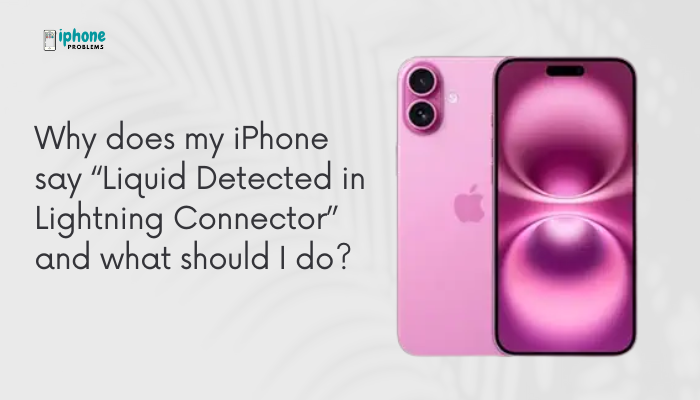
If your iPhone displays a warning that says “Liquid Detected in Lightning Connector,” it means the device has detected moisture or liquid in the charging port or on the Lightning accessory you’re trying to use. This safety alert is designed to protect your phone from short-circuiting, corrosion, or damage caused by liquid exposure.
In this guide, we’ll explain why this message appears, what it means for your device, how to safely respond, and what not to do if you want to protect your iPhone from permanent damage.
⚠️ What Does “Liquid Detected in Lightning Connector” Mean?
This warning indicates that liquid or excessive moisture is present in either:
- The Lightning port of your iPhone, or
- The Lightning connector on your charging cable or accessory
Your iPhone has built-in moisture sensors that can detect liquid in the charging port. If moisture is detected, charging is automatically disabled to prevent electrical damage.
You may see one of two alerts:
- “Liquid Detected in Lightning Connector. Disconnect to allow the connector to dry.”
- “Charging Not Available. Liquid has been detected in the Lightning connector.”
These messages may appear if:
- You recently used your iPhone in the rain
- The phone was splashed or submerged
- You have sweat or condensation on your cable or hands
- The iPhone is in a humid environment
🧠 Why Is This Feature Important?
Liquid in the charging port can:
- Short-circuit your iPhone
- Corrode the pins inside the Lightning connector
- Cause permanent damage to the charging system or logic board
To prevent this, iOS disables wired charging and data transfer until the port is dry.
🔐 This feature is available on iPhones running iOS 10 or later and helps protect your device from water damage—even on water-resistant models.
✅ What Should I Do When You See This Alert?
Here are the recommended steps:
Unplug Everything
- Immediately unplug the Lightning cable or accessory.
- Don’t attempt to charge or connect anything else until the port is dry.
Don’t Use Heat or Compressed Air
- Do not use hair dryers, heating pads, or compressed air cans. They can cause internal damage or force moisture deeper into the device.
Gently Shake the iPhone
- Hold the iPhone with the Lightning port facing downward.
- Lightly tap it against your hand to encourage water to drip out.
Let It Air Dry
- Place the iPhone in a dry area with good airflow (e.g., near a fan or on a dry surface).
- Let it sit undisturbed for at least 30 minutes to a few hours.
Check the Cable Too
- Wipe the Lightning cable with a dry, lint-free cloth.
- Set the cable aside to air dry separately.
🕒 When Can I Safely Charge Again?
Wait until both the Lightning port and the cable are completely dry.
You can try charging again after:
- 30 minutes for minor splashes or condensation
- Several hours or overnight if submerged or soaked
💡 If the warning disappears on its own, your port is likely dry and safe to use again.
🚫 What Not to Do
Avoid these common mistakes:
| ❌ Don’t Do This | Why It’s Bad |
| Use rice or silica gel | Ineffective and particles can enter the port |
| Force the cable into the port | Risk of short-circuiting or damaging the pins |
| Charge wirelessly while wet | Moisture may still affect internal components |
| Ignore the warning and override it | Could cause irreversible hardware damage |
🔌 Can I Bypass the Warning?
Apple gives you an option to override the warning and proceed with charging in emergencies, but this is not recommended unless absolutely necessary.
If you tap “Emergency Override,” your iPhone will begin charging even with moisture detected—but this puts your device at significant risk.
🛑 Only use this in critical situations, such as needing battery power for emergency calls.
🧪 Water Resistance vs. Waterproof: Know the Limits
Most modern iPhones (iPhone 7 and later) are water-resistant, not waterproof. That means:
- They can withstand splashes, rain, or brief submersion
- They are not designed for swimming, prolonged underwater use, or high-pressure jets
Over time, water resistance can weaken due to wear, cracks, or aging seals.
🧰 Still Seeing the Warning? Try These Steps:
If the message keeps appearing after hours of drying:
- Inspect the port with a flashlight for signs of water, lint, or corrosion
- Use a soft brush to remove visible debris (never insert metal objects)
- Try charging with a different Lightning cable
- Restart your iPhone
If the alert persists for more than 24–48 hours, contact Apple Support or visit an Apple Authorized Service Provider.
✅ Summary: What to Do When You See “Liquid Detected in Lightning Connector”
The “Liquid Detected” warning is a protective feature to help prevent charging damage. Don’t panic—it’s your iPhone doing its job.
Quick Action Checklist:
| Step | Action |
| 1. Unplug | Remove all Lightning accessories |
| 2. Air dry | Place in a dry, ventilated spot |
| 3. Wait | Allow at least 30 minutes |
| 4. Avoid heat | No blow dryers or direct heat |
| 5. Retry charging | After the port is completely dry |
Meta Description:
Why does your iPhone say “Liquid Detected in Lightning Connector”? Learn what it means, how to safely dry your phone, and what not to do to avoid permanent charging damage.